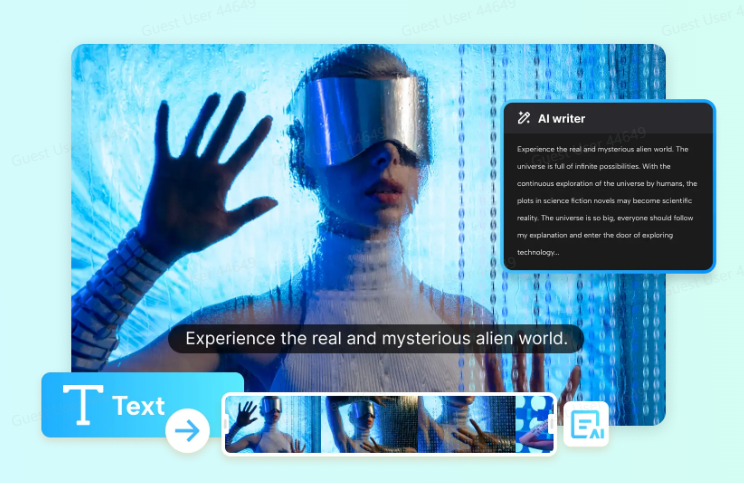
Writing a great video narration is harder than it looks. You need the right tone, a clear flow, engaging language, and perfect timing—all while keeping your audience engaged from the first second to the last. For many creators, marketers, educators, and YouTubers, narration writing can become the most time-consuming part of video production. This is where CapCut AI Writer makes a real difference. Instead of staring at a blank screen, you can use AI to brainstorm ideas, structure your narration, and fine-tune your script in minutes. Whether you’re creating YouTube videos, reels, tutorials, ads, or explainer content, CapCut AI Writer helps you sound more confident, natural, and professional. When paired with CapCut’s AI logo generator, creators can also ensure their video narration aligns with a consistent visual identity—strengthening brand recognition across every piece of content.
Why Good Video Narration Matters More Than Ever
Video narration isn’t just about reading words out loud. A strong narration:
- Guides viewers through your content
- Keeps attention high, especially in short-form videos
- Makes complex ideas easier to understand
- Builds trust and personality
- Improves watch time and engagement
Poor narration, on the other hand, can make even visually stunning videos feel boring or confusing. CapCut AI Writer solves this by helping you write scripts that feel structured, natural, and audience-friendly—without sounding robotic.
What Is CapCut AI Writer?
CapCut AI Writer is a built-in AI tool available in CapCut Desktop that helps you generate ideas, scripts, and narration text using smart prompts. It understands tone, duration, platform requirements, and creative direction, making it ideal for video narration. Instead of writing everything manually, you guide the AI—and it does heavy lifting.
How CapCut AI Writer Helps You Write Better Video Narrations
Here’s how it improves your narration workflow:
- Turns rough ideas into clear narration outlines
- Matches tone (casual, professional, humorous, emotional)
- Saves hours of writing and rewriting
- Reduces creative blocks
- Keeps narration concise and on-point
- Adapts content for different video lengths
And with CapCut’s online photo editor, you can seamlessly pair your polished narration with visually refined thumbnails, frames, and visuals—bringing your entire video story together in one workflow.
Step 1: Use AI to Shape Your Narration Ideas
Start by opening CapCut Desktop and selecting the AI video maker from the main dashboard. This opens a creative workspace designed to help you plan and write video content with AI support.
Inside this workspace, choose the option to brainstorm ideas with AI. Instead of writing a full script immediately, you begin with a simple concept—such as your video’s topic, message, or goal.
For example, you might enter:
- A YouTube video idea
- A short description of your narration topic
- A content goal like “educational,” “promotional,” or “story-based.”
Once you submit your idea, the AI generates relevant topic suggestions and key talking points based on trending content and logical structure. You can review these suggestions, select the ones that fit your narration style, or explore more ideas if you want different angles. After choosing your preferred direction, the AI automatically converts those ideas into organized narration points. When you’re ready, move forward by generating the script foundation. This step helps you avoid rambling narrations and ensures your video has a clear beginning, middle, and end.
Step 2: Generate and Adjust Your Narration Script
With your narration topic selected, CapCut AI Writer now creates a complete narration script. A new editing window appears where you can shape the script to fit your exact needs. Here, you can:
- Choose the length of your narration (short, medium, or long)
- Define the tone (friendly, energetic, professional, emotional, etc.)
- Add specific instructions, such as
- “Sound conversational”
- “Keep sentences short.”
- “Make it engaging for beginners.”
Once you click generate, the AI rewrites the narration based on your preferences. The result is a script that feels more natural, better paced, and easier to read aloud. If the script feels right, you can apply it instantly. If not, you’re free to regenerate a new version or make small manual edits. This flexibility allows you to experiment until the narration matches your voice and audience perfectly. This step is especially useful for creators who want professional-quality narration without hiring a scriptwriter.
Step 3: Refine, Polish, and Use Your Narration in Videos
After finalizing your narration script, the last step is refinement. Read through the text as if you’re speaking it out loud. CapCut AI Writer scripts are already optimized for flow, but you can still tweak wording to match your personal speaking style.
At this stage, you can:
- Simplify complex sentences
- Add pauses or emphasis cues
- Adjust pacing for voiceovers
- Prepare the script for text-to-speech or manual recording
Once polished, you can directly use the narration in your video project—whether you’re recording a voiceover, syncing text animations, or pairing it with CapCut’s audio features. This step ensures your narration sounds human, confident, and engaging, not stiff or overwritten.
Conclusion
Writing better video narrations doesn’t have to be stressful or time-consuming. With CapCut AI Writer, you can go from a simple idea to a polished narration script in just minutes. The AI helps you brainstorm, structure, and refine your words—so you can focus more on creativity and storytelling. If you want narrations that sound clearer, smoother, and more engaging without struggling with writer’s block, CapCut AI Writer is a powerful solution worth trying.

Backlinks Hub is a results-driven SEO platform focused on smart link-building, valuable content, and proven strategies that help brands grow faster and rank higher in search engines.