In competitive gaming, milliseconds separate victory from defeat. Players invest heavily in high-refresh monitors, precision mice, and mechanical keyboards, yet one critical component often goes unnoticed: the keycaps sitting beneath their fingertips. These small plastic caps serve as the direct interface between a gamer’s intentions and on-screen actions, influencing tactile feedback, grip consistency, and keystroke accuracy in ways that compound over thousands of inputs per session. The problem is clear—many gamers settle for stock keycaps that ship with their keyboards, never realizing that worn, slippery, or poorly shaped caps are quietly undermining their reaction times and comfort during extended play. This article breaks down how to choose keycap sets tailored to your gaming style, maintain them for lasting performance, and integrate them into a broader peripheral optimization strategy. From material science to high DPI synergy, you’ll discover that upgrading your keycaps is one of the most cost-effective ways to elevate your entire setup.
The Role of Keycap Sets in Gaming Performance Enhancement
Every keystroke in a fast-paced game involves a chain of physical interactions: your finger contacts the keycap surface, applies downward force, triggers the switch mechanism, and returns to a neutral position. The keycap’s texture, weight, and shape directly influence how quickly and accurately you complete this cycle. A keycap with poor grip forces your fingers to work harder to maintain contact, introducing micro-hesitations that accumulate across an entire match. Conversely, a well-chosen set provides consistent tactile landmarks that let your fingers navigate the board without visual confirmation, keeping your eyes locked on the screen where they belong.
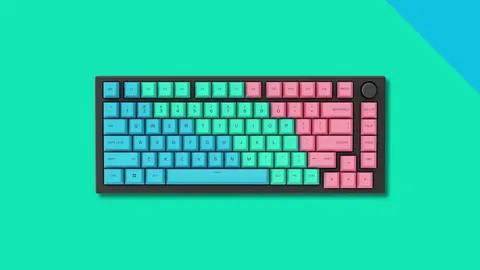
Customization plays a significant role here. Gamers who swap their WASD cluster for textured or contoured caps often report improved spatial awareness on the keyboard, reducing misstrokes during intense engagements. Color-coded or uniquely shaped caps for ability keys in MOBAs can shave precious milliseconds off skill rotations. The goal isn’t just aesthetics—it’s building a physical map that your muscle memory can exploit under pressure.
Material Matters: ABS vs. PBT for Gamers
ABS (Acrylonitrile Butadiene Styrene) keycaps are the industry default, found on most stock keyboards. They feel smooth out of the box and produce a slightly higher-pitched sound on actuation. However, ABS develops a greasy shine within weeks of heavy use as the surface wears down, reducing friction and making keys feel slippery during sweaty, high-stakes sessions. For casual gamers this might be tolerable, but competitive players notice the degradation quickly.
PBT (Polybutylene Terephthalate) offers a grainier, more textured surface that resists shine far longer. The material is denser and more resistant to heat and chemical wear from skin oils. For gamers who play four or more hours daily, PBT maintains its grip characteristics for months rather than weeks. The tradeoff is a slightly rougher feel that some players need time to adjust to, and PBT sets can be more brittle if dropped. For sustained competitive use, PBT’s longevity and consistent surface texture make it the stronger choice.
Profile and Design: Finding Your Fit
Keycap profile refers to the overall height and sculpt of each row across the keyboard. OEM profile—the most common—features a medium height with a gentle curve across rows, offering a familiar feel for most users. Cherry profile sits slightly lower, reducing the distance your fingers travel between keystrokes and promoting a flatter hand position that many FPS players prefer for rapid directional inputs. SA profile is tall and spherically sculpted, providing deep finger wells that guide your digits into position but requiring more finger travel, making it popular among typists and strategy gamers who value deliberate, accurate keypresses over raw speed.
Low-profile caps paired with speed switches minimize total key travel, which benefits twitch-reaction games where every fraction of a second counts. Meanwhile, sculpted profiles with distinct row heights help players maintain home-row awareness without looking down. The right profile depends on your hand size, preferred wrist angle, and whether your game demands rapid tapping or sustained holds. Testing multiple profiles—even borrowing sets from friends—remains the most reliable way to identify what feels natural under competitive pressure.
Selecting the Right Keycap Sets for Your Gaming Peripherals
Choosing keycap sets goes beyond picking a color scheme that matches your RGB lighting. The selection process starts with understanding your keyboard’s physical constraints and ends with aligning your choice to the specific demands of your preferred game genres. A set that looks perfect online might arrive only to reveal incompatible stabilizers, mismatched row profiles, or legends that block your backlight bleed-through. Taking a systematic approach saves money and ensures your upgrade actually delivers the performance gains you’re chasing.
Your gaming style should heavily influence your decision. FPS players benefit from lighter, low-profile caps on movement keys that allow rapid directional changes without finger fatigue over long sessions. MOBA and MMO players, who rely on hitting numerous ability keys in precise sequences, often prefer sculpted sets with distinct tactile landmarks on each row so fingers can differentiate keys by touch alone. Strategy gamers who issue commands across the entire board may prioritize uniform profiles that feel consistent regardless of which region they’re pressing. Before purchasing, read community reviews from players in your genre—their feedback reveals real-world performance insights that product descriptions never capture.
Compatibility Check: Keycaps and Keyboard Models
Start by identifying your keyboard’s switch stem type. The vast majority of mechanical keyboards use Cherry MX-style cross-shaped stems, making them compatible with most aftermarket keycap sets. However, some brands employ proprietary stems—Razer’s older optical switches and Logitech’s Romer-G, for example—that limit your options significantly. Check your keyboard’s documentation or pull off an existing cap to inspect the stem shape before ordering.
Next, confirm your keyboard’s layout. Standard ANSI layouts accommodate nearly any universal keycap set, but compact boards (65%, 75%) and keyboards with non-standard bottom rows—common on gaming brands that use wider spacebar stabilizer spacing or uniquely sized modifier keys—require specialty kits or sets that include extra caps for alternate sizing. Measure your spacebar length, right shift, and bottom-row modifiers against the set’s included caps. If you rely on backlighting for dark-room gaming, verify whether the set uses shine-through legends or translucent materials that allow light to pass. Doubleshot legends with transparent layers offer the sharpest illumination, while dye-sublimated PBT caps typically block light entirely. Matching these technical details to your board prevents frustrating returns and ensures a seamless fit from day one.
Maintenance and Care for Mechanical Keyboards with Keycap Sets
Investing in premium keycap sets means little if you let grime, skin oils, and debris accumulate unchecked. Dirty keycaps lose their textured grip, develop inconsistent surfaces across frequently used keys, and can even interfere with switch actuation when particles fall into the housing. Beyond performance, neglected keyboards become breeding grounds for bacteria—a real concern during marathon sessions where snacks and drinks share desk space with your gear. Establishing a regular maintenance routine protects your investment and ensures that the tactile advantages you paid for remain intact month after month.
Cleaning Solutions and Techniques
Remove your keycaps using a wire keycap puller rather than prying with fingers, which risks cracking stems or scratching surfaces. Pull straight upward with even pressure, working from the edges of the board inward. Once removed, soak the caps in a bowl of warm water mixed with a small amount of mild dish soap for thirty to sixty minutes. This loosens oils and softens any stuck-on residue without damaging PBT or ABS plastic. After soaking, use a soft-bristled toothbrush to gently scrub each cap, paying attention to the textured tops and the interior stem cavity. Rinse thoroughly under clean water and lay them on a lint-free towel to air dry completely before reinstalling—moisture trapped inside stems can corrode switch contacts over time. For the exposed keyboard plate and switches, use compressed air to blast out dust and hair, then wipe the plate with a microfiber cloth lightly dampened with isopropyl alcohol at seventy percent concentration. Avoid spraying liquid directly onto switches.
Preventive Maintenance Tips
Build habits that reduce how often deep cleaning becomes necessary. Wash and dry your hands before gaming sessions to minimize oil transfer—this single step dramatically slows the shine development on ABS caps and keeps PBT texture feeling fresh. Keep food and beverages away from your keyboard, or at minimum use sealed containers and position drinks on the opposite side of your mouse hand. Every two weeks, flip your keyboard upside down and tap it gently to dislodge loose debris, then follow up with a quick pass of compressed air between the rows. Inspect your keycaps monthly for signs of wear: uneven shine on WASD keys, loosening stem fit, or hairline cracks near the mounting cross. Rotating heavily worn caps with lesser-used keys from the numpad or function row can extend the usable life of a set while you plan a replacement. Store spare keycap sets in sealed bags or compartmented containers away from direct sunlight, which can yellow lighter plastics and weaken the material over time.
Synergizing Keycap Sets with Other Gaming Peripherals
Your keycap set doesn’t exist in isolation—it functions as one node in a connected ecosystem of peripherals that collectively determine your competitive ceiling. When your keyboard’s tactile response harmonizes with your mouse’s tracking precision and your monitor’s refresh timing, inputs feel seamless rather than disjointed. Consider how a textured PBT keycap set with distinct row sculpting pairs with a lightweight gaming mouse from a brand like ATTACK SHARK: your left hand maintains confident key contact without excess force while your right hand glides through micro-adjustments, creating a balanced input flow where neither hand compensates for the other’s shortcomings.
Coordinated setups extend beyond feel into ergonomics. Matching your keycap profile height to your mouse pad thickness and wrist rest elevation creates a uniform plane that reduces strain across both hands during long sessions. FPS professionals often pair low-profile Cherry keycaps with low-sensitivity mouse configurations, keeping both wrists flat and movements minimal. MOBA players might combine sculpted SA caps—which encourage deliberate finger placement—with a high-button mouse that offloads some ability activations, distributing the workload evenly. Even your monitor’s response time factors in: there’s little point optimizing keystroke speed if your display introduces latency that masks the improvement. Treating your peripherals as an integrated system rather than individual purchases ensures that upgrading one component amplifies the effectiveness of everything else on your desk.
Advanced Optimization: Keycaps and High DPI Settings for Peak Performance
The relationship between keycap feedback and mouse sensitivity is more interconnected than most gamers realize. When you run high DPI settings on your mouse, cursor movements become extremely responsive to tiny hand shifts—meaning your aiming hand operates on razor-thin margins. Your keyboard hand needs to match that precision. If your keycaps provide vague or inconsistent tactile feedback, your brain allocates extra processing power to confirming whether a keystroke registered, pulling cognitive resources away from the split-second aiming decisions that high DPI demands. Textured, well-profiled keycaps deliver instant confirmation through touch alone, freeing your mental bandwidth to focus entirely on crosshair placement and target tracking.
This synergy becomes especially apparent in games requiring simultaneous movement and precision aiming. A player strafing while tracking a target needs absolute confidence that their movement keys are responding without conscious verification. The crispness of a PBT keycap’s texture combined with a sculpted profile creates unmistakable physical feedback that pairs naturally with the heightened responsiveness of elevated DPI settings. When both input devices communicate clearly through feel, your reaction chain tightens—perception flows into action without the friction of uncertainty on either hand.
Step-by-Step Tuning Process
Start by assessing your current setup: note which keycap material and profile you’re using, your mouse DPI setting, and your in-game sensitivity multiplier. Identify friction points—do you ever glance at your keyboard during intense moments, or do your fingers hesitate on certain keys? These are signs your keycaps aren’t providing adequate tactile differentiation. Next, adjust your keycap profiles based on your primary genre. FPS players should install low-profile caps on WASD for minimal travel that matches the instantaneous response of high DPI aiming, while MOBA players benefit from sculpted caps on QWER ability rows that provide distinct positional feedback during rapid skill combos. Third, calibrate your mouse DPI in tandem with your keyboard input confidence—if new keycaps give you faster confirmed keystrokes, you may find you can push your sensitivity slightly higher without feeling overwhelmed, since your movement inputs are now more reliable. Finally, test your adjustments in practice modes or casual matches for at least a week. Track metrics like accuracy percentage, ability usage errors, and subjective comfort. Iterate by swapping individual keycaps or adjusting DPI in small increments until both hands feel equally responsive and neither input device creates a bottleneck in your reaction chain.
Elevate Your Competitive Edge Through Keycap Upgrades
The keycaps beneath your fingers represent one of the most undervalued upgrades in competitive gaming. Selecting the right material, profile, and design transforms your keyboard from a generic input device into a precision instrument tuned to your specific playstyle and genre demands. PBT’s lasting texture, sculpted profiles that guide muscle memory, and compatibility-aware purchasing decisions all contribute to measurable improvements in keystroke confidence and speed. Maintaining those keycaps through regular cleaning and preventive habits ensures that your investment delivers consistent performance over months of heavy use rather than degrading into the same slippery, worn-out surfaces you replaced. When integrated thoughtfully with your mouse sensitivity, monitor responsiveness, and ergonomic positioning, upgraded keycaps amplify the effectiveness of your entire peripheral ecosystem rather than functioning as an isolated cosmetic swap. Take a moment to pull off a keycap from your current board—examine its shine, test its grip, and consider whether it’s helping or hindering your competitive edge. Small, deliberate changes at the point where your body meets your machine can unlock potential that no software setting or hardware spec alone can deliver.