Images play a major role in how people experience a website, but they are also one of the most common sources of accessibility failures. When images are not properly described, users who rely on screen readers are left without essential context or information.
The surprising thing is that many websites technically include alt text, yet still fail WCAG requirements. This usually happens because the descriptions are missing, incorrect, or written without understanding how assistive technologies actually use them.
With the right approach, alt text becomes a powerful accessibility improvement rather than a checkbox. Let’s walk through how to check image accessibility properly and how to improve alt text in a meaningful way.
What Alt Text Is and Why It Matters
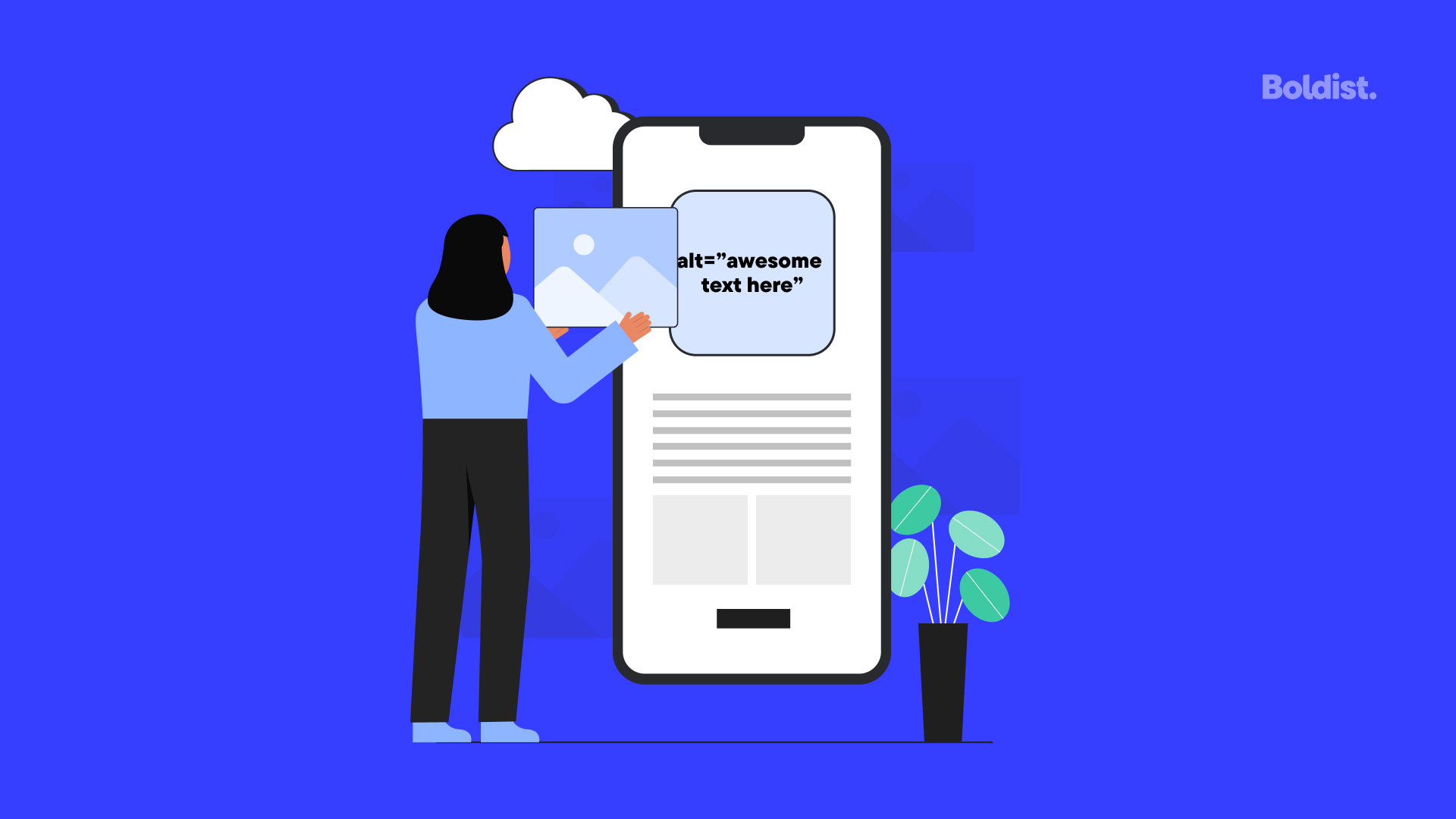
Alt text, or alternative text, is a short description added to an image in HTML. Screen readers use this text to convey the content or purpose of an image to users who cannot see it.
Alt text is required under WCAG whenever an image conveys information, supports an action, or provides context. Without it, screen reader users may hear only that an image exists, with no explanation of what it represents.
Good alt text ensures that all users receive the same information, even if they experience the content differently.
Common Alt Text Mistakes That Break Accessibility
Many accessibility issues related to images come from misunderstandings about what alt text should include.
Common problems include overly generic descriptions, repeating nearby text unnecessarily, or adding alt text to images that should be ignored by assistive technologies. Decorative images, for example, should usually have empty alt attributes so they are skipped by screen readers.
Another frequent issue is using file names or technical labels as alt text, which adds noise rather than value.
How to Check Alt Text on Your Website
The first step in improving image accessibility is understanding what alt text is currently in place.
You can inspect individual images manually by reviewing HTML markup, or scan pages to identify missing or problematic alt attributes. During this process, focus on whether the alt text actually explains the purpose of the image in its context, not just whether the attribute exists.
Many teams start by reviewing high traffic or high importance pages, then expand coverage across the site as part of a broader accessibility effort.
Writing Effective Alt Text That Meets WCAG
Effective alt text depends on context. The same image may require different descriptions depending on how it is used.
When writing alt text, ask what information the image provides to a sighted user and how that information should be conveyed to someone using a screen reader. The goal is clarity, not visual detail.
In practice, strong alt text should:
- Describe the meaning or function of the image
- Be concise and relevant to surrounding content
- Avoid phrases like “image of” or “picture of”
This approach keeps descriptions helpful without becoming distracting.
Decorative Images vs Informative Images
Not all images need alt text.
Decorative images that do not convey information should use empty alt attributes so they are ignored by screen readers. This includes purely visual dividers, background graphics, or icons used only for styling.
Informative images, on the other hand, must include alt text that communicates their purpose. This distinction is essential for avoiding unnecessary noise while still meeting accessibility requirements.
Alt Text for Icons, Buttons, and Linked Images
Images used as buttons or links require special attention. In these cases, the alt text should describe the action, not the appearance.
For example, an icon that submits a form should describe what happens when it is activated. Screen reader users rely on this information to understand how to interact with the interface.
Testing interactive images is especially important because failures here can block navigation or functionality entirely.
Automated vs Manual Alt Text Checks
Automated tools can help identify missing alt attributes, but they cannot judge quality.
Automated checks are useful for spotting patterns across a site, while manual review is needed to determine whether the alt text actually makes sense in context. Combining both approaches leads to better results and fewer false positives.
Many teams review initial scan results, then manually refine descriptions where meaning or intent is unclear. This balanced process reduces effort while improving accuracy.
Prioritizing Alt Text Fixes
When improving alt text across a site, it’s important to prioritize.
Start with images that:
- Appear on key pages such as home, product, or checkout
- Convey essential information
- Function as links or controls
Addressing these images first delivers immediate accessibility improvements and reduces risk.
Making Alt Text Part of Your Ongoing Workflow
Alt text should not be a one time task. As new images are added, accessibility checks should be part of the content and design workflow.
Establishing clear internal guidelines for writing alt text helps ensure consistency over time. Regular reviews also help catch regressions when content is updated or redesigned.
If you’re already reviewing accessibility more broadly, integrating image checks alongside other WCAG requirements creates a more sustainable process. Resources and guidance available through platforms like tabnav accessibility checker can help teams understand where to focus and how to improve web accessibility over time.
Next Steps After Improving Image Accessibility
Once alt text is in place and reviewed, continue testing across different pages and templates. Retest after content updates and validate changes with screen readers when possible.
Alt text may seem like a small detail, but when done right, it plays a critical role in making content accessible, understandable, and inclusive for all users.

Bit Labs Author is a multi-niche digital expert who creates sharp, high-impact content across Tech, Digital Marketing, Business, Law, News, and Lifestyle. Known for blending research with creativity, they transform complex topics into clear, engaging insights that empower readers to learn, grow, and stay ahead in the digital age.